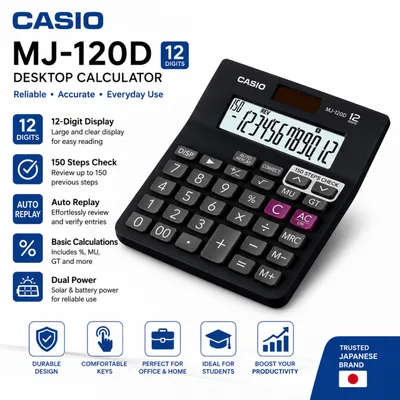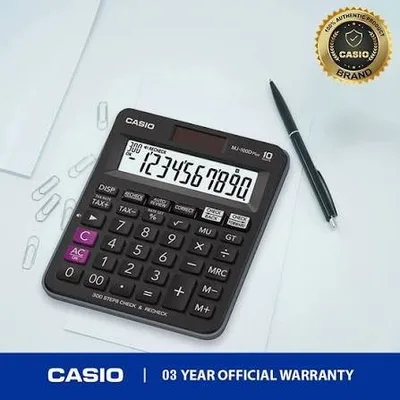
CASIO DJ-120D Plus 12 Digit Check & Recheck Desktop Calculator
Screen: Extra-large, high-contrast 12-digit LCD screen.
Keys: Key rollover buffer supports fast typing without missing entries.
Keycaps: UV-coated plastic keycaps prevent letters and numbers from fading.
Functions: Tax calculations, Markup (MU), Grand Total (GT), Independent Memory, and Square Root (\(\sqrt{}\)).
Size: 192 × 144 × 34.6 millimeters.
Weight: 205 grams.
৳1,350৳2,000Save 32%
In stock
1
Delivery to all 64 districts. Cash on delivery.
- Pay cash when it arrives, or bKash, Nagad and cards
- Original products, checked before packing
- Find similar items
About this product
🌟 Key Features
📊 Technical Specifications
💡 Step-by-Step Function Guides How to Use Check & Recheck
- Check & Recheck: Compares a second calculation against the first. A buzzer alerts you if a different key is pressed.
- 300 Steps Check: Tracks up to 300 chronological data entry steps for easy review.
- Auto Review: Replays all calculation steps automatically at the press of a single button.
- Dual Power: Uses solar power when bright and standard battery power when dark.
- Localized Format: Toggles digit comma markers easily between Western (Millions) and Indian (Lakhs/Crores) formats.
📊 Technical Specifications
- Screen: Extra-large, high-contrast 12-digit LCD screen.
- Keys: Key rollover buffer supports fast typing without missing entries.
- Keycaps: UV-coated plastic keycaps prevent letters and numbers from fading.
- Functions: Tax calculations, Markup (MU), Grand Total (GT), Independent Memory, and Square Root (\(\sqrt{}\)).
- Size: 192 × 144 × 34.6 millimeters.
- Weight: 205 grams.
💡 Step-by-Step Function Guides How to Use Check & Recheck
- Clear the calculator screen.
- Type your calculation normally (e.g.,
100 + 200 = 300). - Press the RECHECK button.
- Type the exact same calculation again (
100 + 200 =). - If you press a wrong number during the second pass, the calculator will beep to flag the mistake.
- Press and hold the % (SET) button until “SET” appears on the screen.
- Press the TAX+ button.
- Enter your tax rate number (e.g., enter
15for a 15% VAT). - Press the % (SET) button again to save the rate.
- To use: Type an amount and press TAX+ to add tax, or TAX- to strip the tax away.
Before you order, please read our Shipping & Delivery and Return & Refund Policy.
Ratings and reviews
No reviews yet. Bought this? Be the first to review it.
Similar items
They look like this one